List Files with the Druid Connector Host
The List Files integration task enables the Druid Connector Host to retrieve a list of files from a specific local disk or network location accessible by the host machine. This task is similar to the ls Linux command and is useful when you need to identify which files are available in a directory before reading or processing them.
Add and configure the List Files integration
To set up the List Files integration, follow these steps:
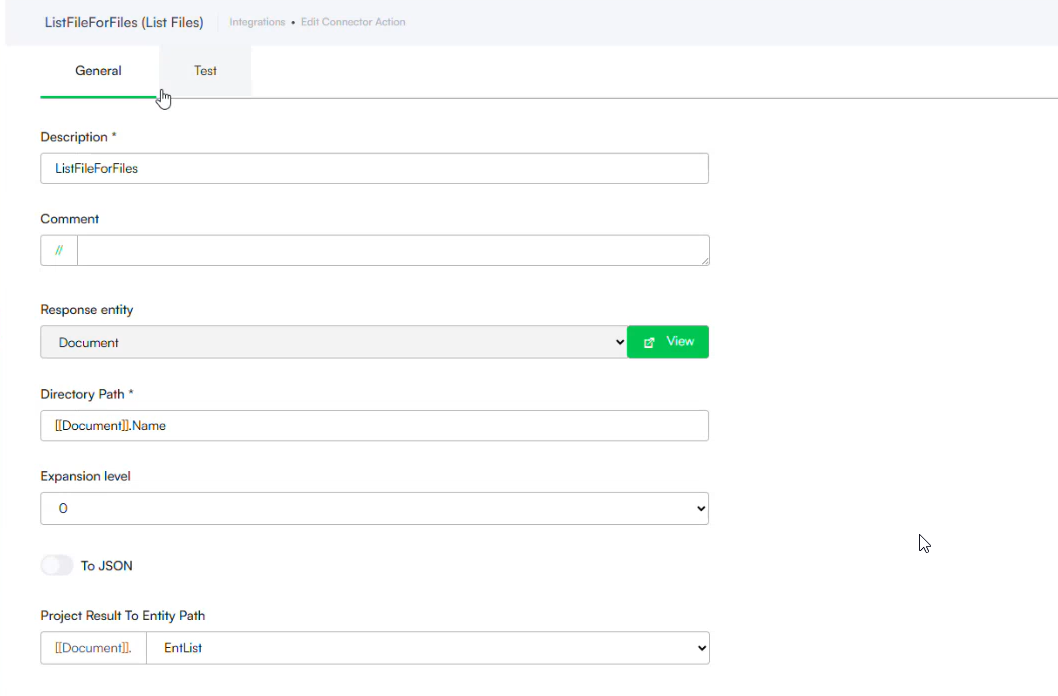
- Go to the desired connector action configuration page.
- Click on the Connector steps tab.
- In the top-right corner, click Create task > Files > List Files.
- Provide a short description for the task.
- In the Directory Path field, enter the entity field that stores the directory path you want to list using the explorer selector. For example, [[Document]].Name.
- In the Expansion level dropdown, select the depth level for listing files:
- 0: Lists only files and folders at the root level.
- 1: Lists files and folders one level below the root.
- 2: Lists all files and folders within all levels under the root.
- (Optional) Enable To JSON to transform the list of files into a JArray format. When enabled, the response will be a JSON object that includes separate fields for files and folders if your path contains both.
- In the Project Result To Entity Path field, the explorer selector to select the entity field of type file where you want to save the results. For example, [[Document]].EntList.
- (Optional) You can filter the file list results to retrieve only specific files that match your criteria, sort the file list results based on specific properties, or paginate the file list results to retrieve files in smaller batches. For more information read the relevant section below.
- Save and close the integration.
- Publish the integration.
Configure Filtering (Optional)
You can filter the file list results to retrieve only specific files that match your criteria. Click on the Filtering tab.
Click Add Filter icon to create a new filter condition. For each filter, configure the following:
- Filter Type: Select the file property to filter by:
- Min Size. Filters files that are larger than or equal to the specified size, in kilobytes (KB).
- Max Size. Filters files that are smaller than or equal to the specified size, in kilobytes (KB).
- File Extension. Filters files by their extension. You can specify multiple extensions, separated by commas.
- Created From. Filters files created on or after the specified date and time.
- Created To. Filters files created on or before the specified date and time.
- Updated From. Filters files last modified on or after the specified date and time.
- Updated To. Filters files last modified on or before the specified date and time.
- Value: Enter the value to compare against.
- For Created From and Created To filters, on most Linux file systems, the true file creation time is not always stored. The filter may return the last metadata change time instead. Depending on the kernels and supported file systems, the file creation time may be shown when available.
- For File extension value, you can enter multiple extensions separated by commas. Extensions with or without a leading dot are both supported (for example: pdf, jpg, .png).
Add multiple filters as needed. All filters are applied using AND logic.
Configure Sorting (Optional)
You can sort the file list results based on specific properties:
- Click on the Sorting tab.
- Click Add Sort icon to create a new sorting rule.
- For each sort rule, configure the following:
- Property: Select the file property to sort by.
- Direction: Choose Ascending or Descending order.
Add multiple sort rules as needed. The order of sort rules determines the sorting priority.
Configure Pagination (Optional)
You can paginate the file list results to retrieve files in smaller batches. Click on the Pagination tab and configure the pagination settings:
-
Page Size: Specify the number of files to return per page.
-
Page Number: Specify which page of results to retrieve (starting from 1).
The response will include pagination metadata such as total count and total pages.
Test the integration
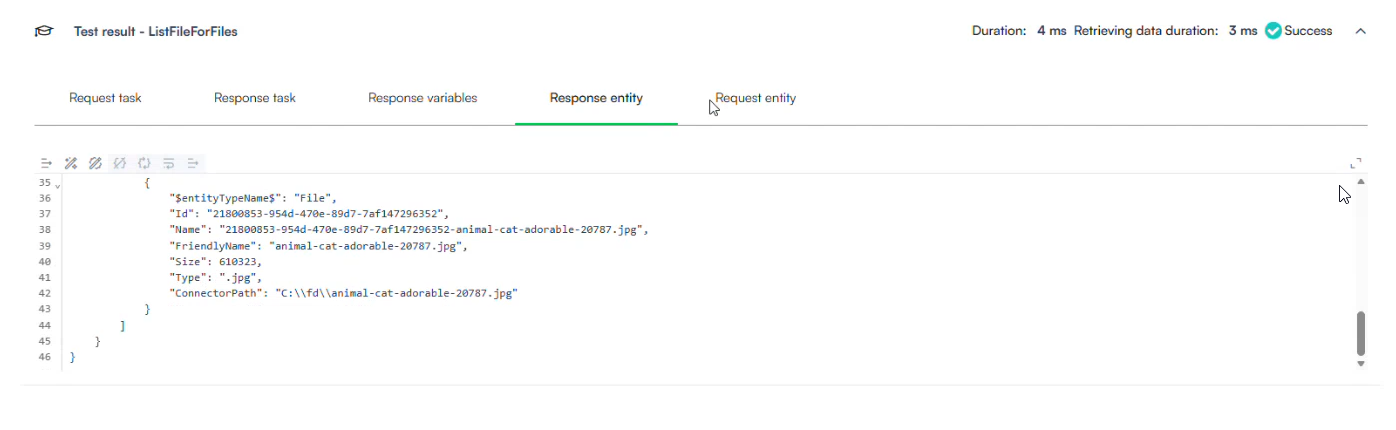
You can test the List Files integration using the Test tab. Here's an example request entity:
Request example
{
  "entityTypeNames": "Document",
  "Name": "C:\\fd",
  "SharedURLFile": "png, .jpg"
}
This test will list files in the C:\\fd directory with the specified configuration.